Partners tab
Path: Vayapin → Settings → Partners
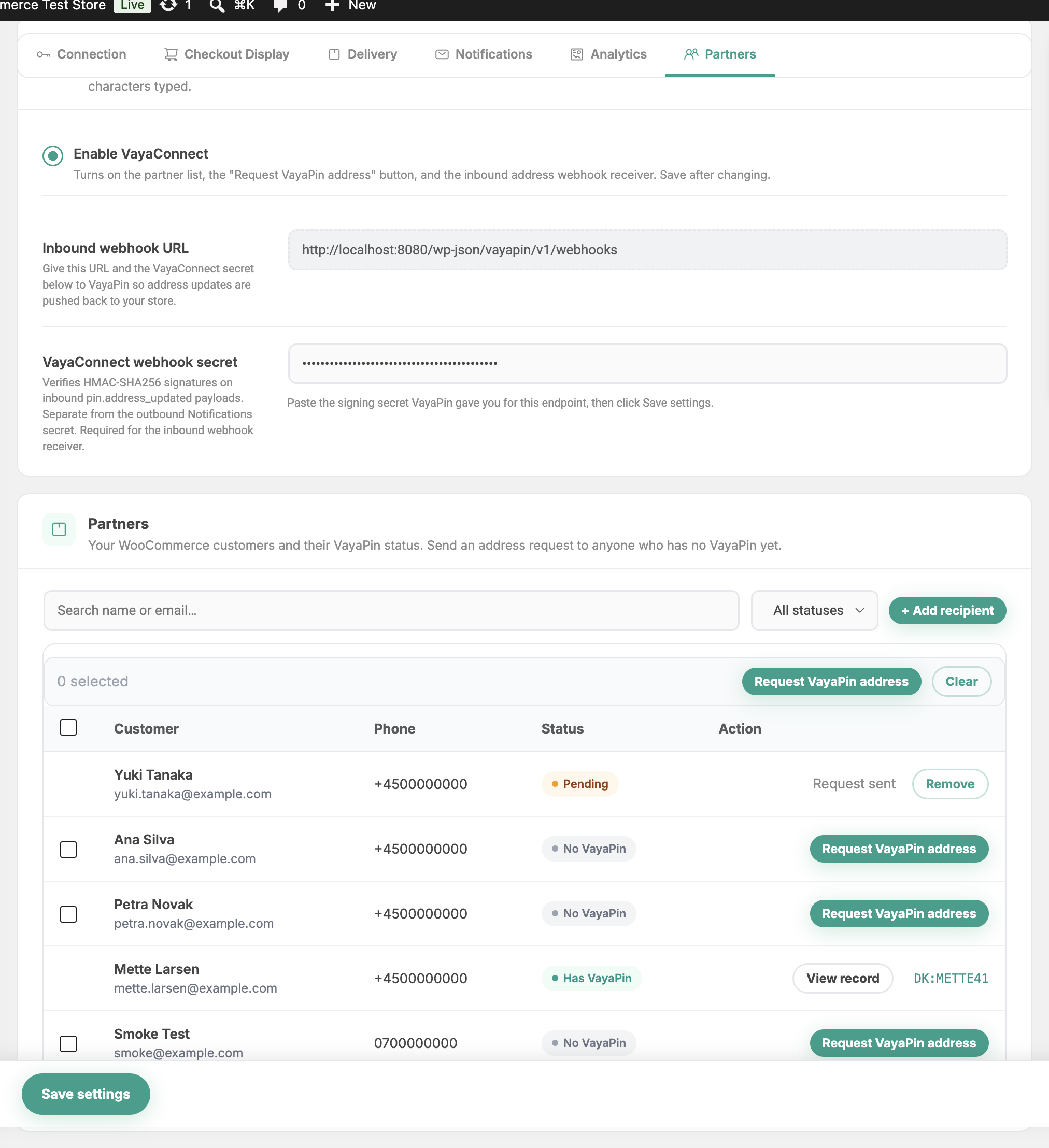
Autofill works when a shopper already has a VayaPin. VayaConnect covers the other direction: you ask someone for their address, they drop a single pin on a map in their own language, and the verified address arrives in your store on its own. Nobody has to type an address in a script they cannot read.
It is off until you switch it on.
How a request goes round
- You pick a customer in the partner list and click Request VayaPin address.
- VayaPin emails them a link. They open a map, drop one pin where the parcel should arrive, and confirm.
- VayaPin creates their VayaPin and pushes the verified address back to your store as a
pin.address_updatedwebhook. - The address appears on the order and on the customer's profile, in the local script and in Latin, with GPS coordinates.
Steps 2 and 3 happen without you. The customer never installs anything and never needs an account with you.
VayaConnect
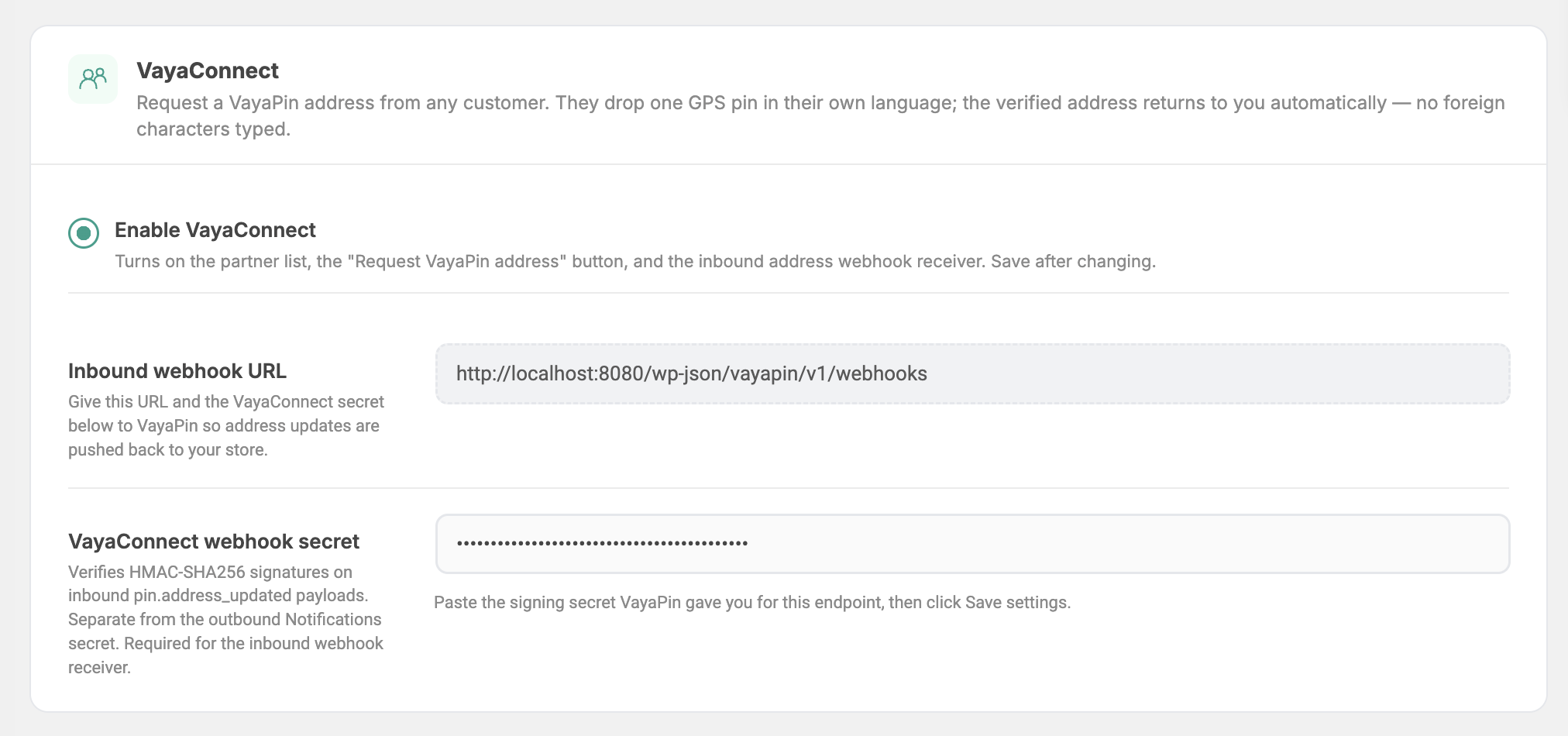
Enable VayaConnect
Turns on the partner list, the Request VayaPin address button and the inbound webhook receiver. Save the page after changing it.
Leaving it off costs nothing: autofill, QR stickers and the consent checkbox all work the same either way.
Inbound webhook URL
The address on your own store that VayaPin posts replies to. The plugin generates it; the field is read-only, click it to select and copy.
https://yourstore.com/wp-json/vayapin/v1/webhooks
VayaConnect webhook secret
Signs the replies so your store can tell a real one from a forgery. Every inbound payload carries an HMAC-SHA256 signature computed with this secret, and anything that does not match is rejected.
Paste the secret VayaPin generated for this endpoint, then save.
This is not the Webhook Secret Key on the Notifications tab. That one signs messages your store sends out. This one verifies messages coming in. Mixing them up means replies are refused.
Registering the URL and getting the secret is done once, in the VayaPin dashboard. The steps with screenshots are under Connect the VayaPin webhook.
Without a secret the receiver refuses every delivery. The partner list stays locked until one is saved, and says so.
Partners
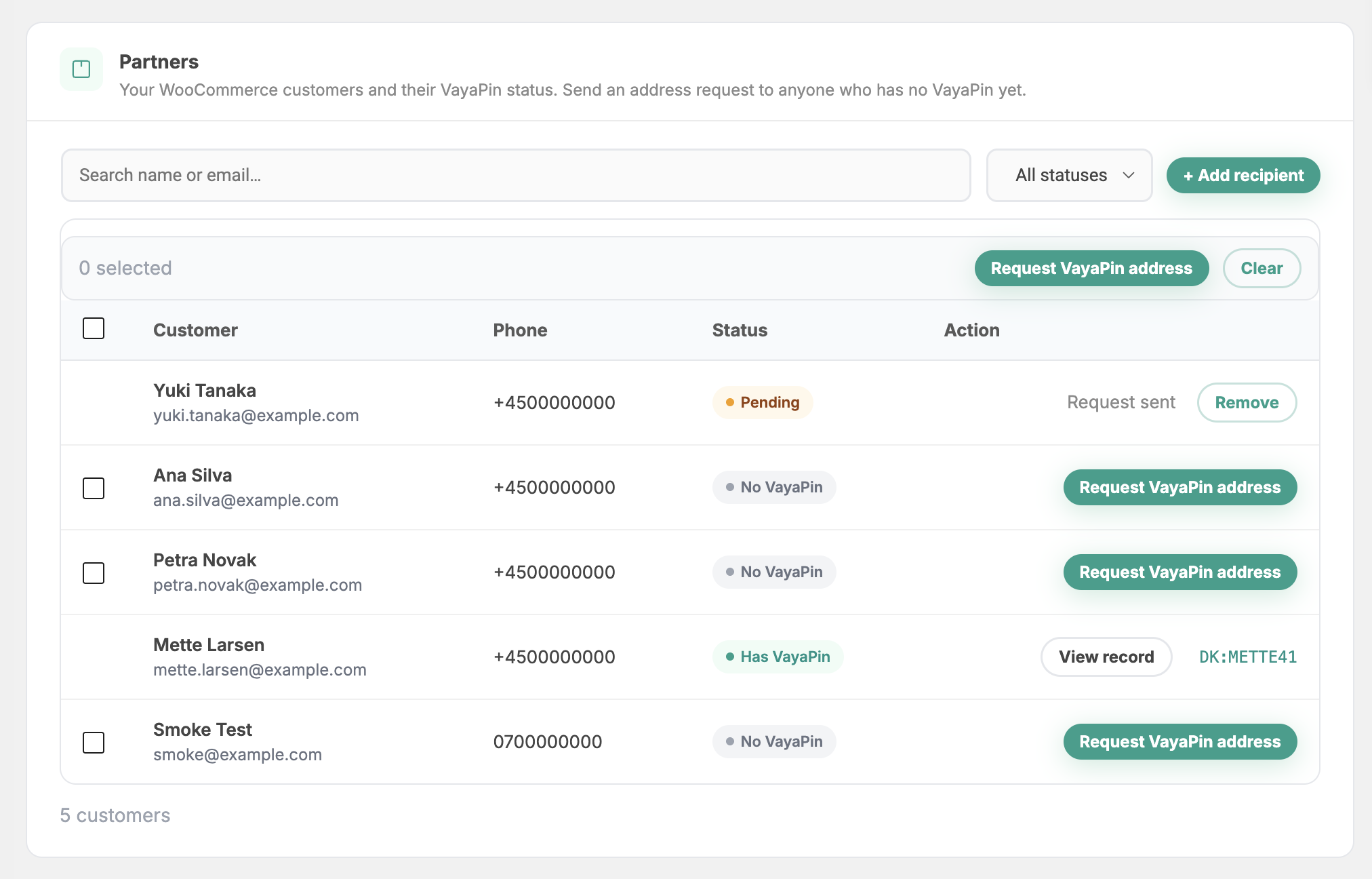
Your WooCommerce customers, with where each one stands.
| Status | What it means | What you can do |
|---|---|---|
| No VayaPin | They have never made one. | Request VayaPin address sends the email. |
| Pending | The request went out; they have not answered. | Remove clears the request so you can start over. |
| Has VayaPin | They answered, or they already had one. | View record opens the verified address. The pin name is shown next to it. |
Search by name or email, or narrow the list with the status filter. Tick several rows and use the Request VayaPin address button above the table to ask them all at once.
Add recipient
Someone who has never ordered from you is not in the list. + Add recipient opens a short form for them.
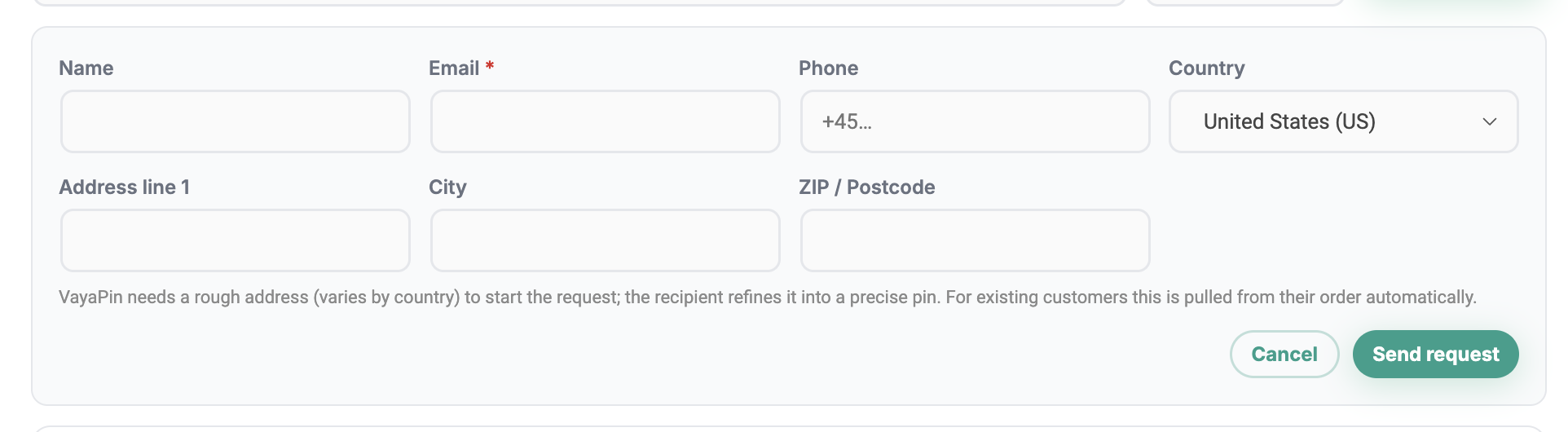
Email is the only field that is required: it is both how VayaPin matches an existing pin and where the link is sent. The address fields are a starting point, not an answer; how much is needed varies by country, and the recipient refines whatever you give into a precise pin. For customers already in the list this is taken from their order.
The verified address
Once a reply arrives, the address shows up on the order screen under the shipping address, and on the customer's profile.
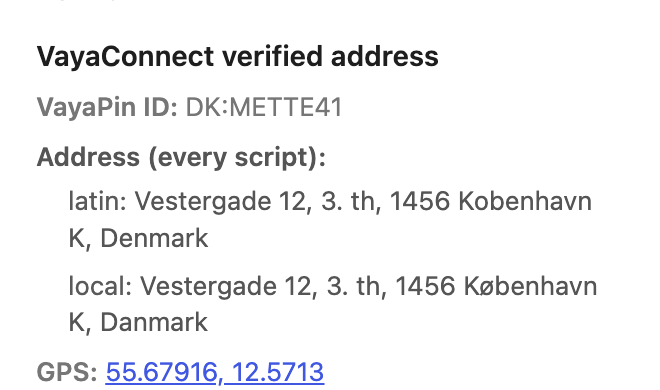
It carries the pin name, the address in every script VayaPin holds for it, and GPS coordinates linked to a map. When VayaPin supplies a QR code, that is shown too.
International label
Orders with a verified address can be printed as a dual-script delivery label: the local script for the courier at the door, Latin for everyone handling it along the way. It prints from the order screen, the same place as the QR delivery sticker.
What travels, and what does not
The request carries the recipient's name, email, country and, when you have them, phone and a rough address. It does not carry anything about the order: no products, no totals, no order number.
The reply carries the address the recipient confirmed, its GPS point and their pin name.
A customer in Tokyo, Prague or Lisbon writes their address in their own script, and a courier two countries away cannot read it. Asking them to retype it in Latin produces a different address and a failed delivery. Letting them drop one pin produces the same address in both scripts, plus the coordinates the driver actually needs.